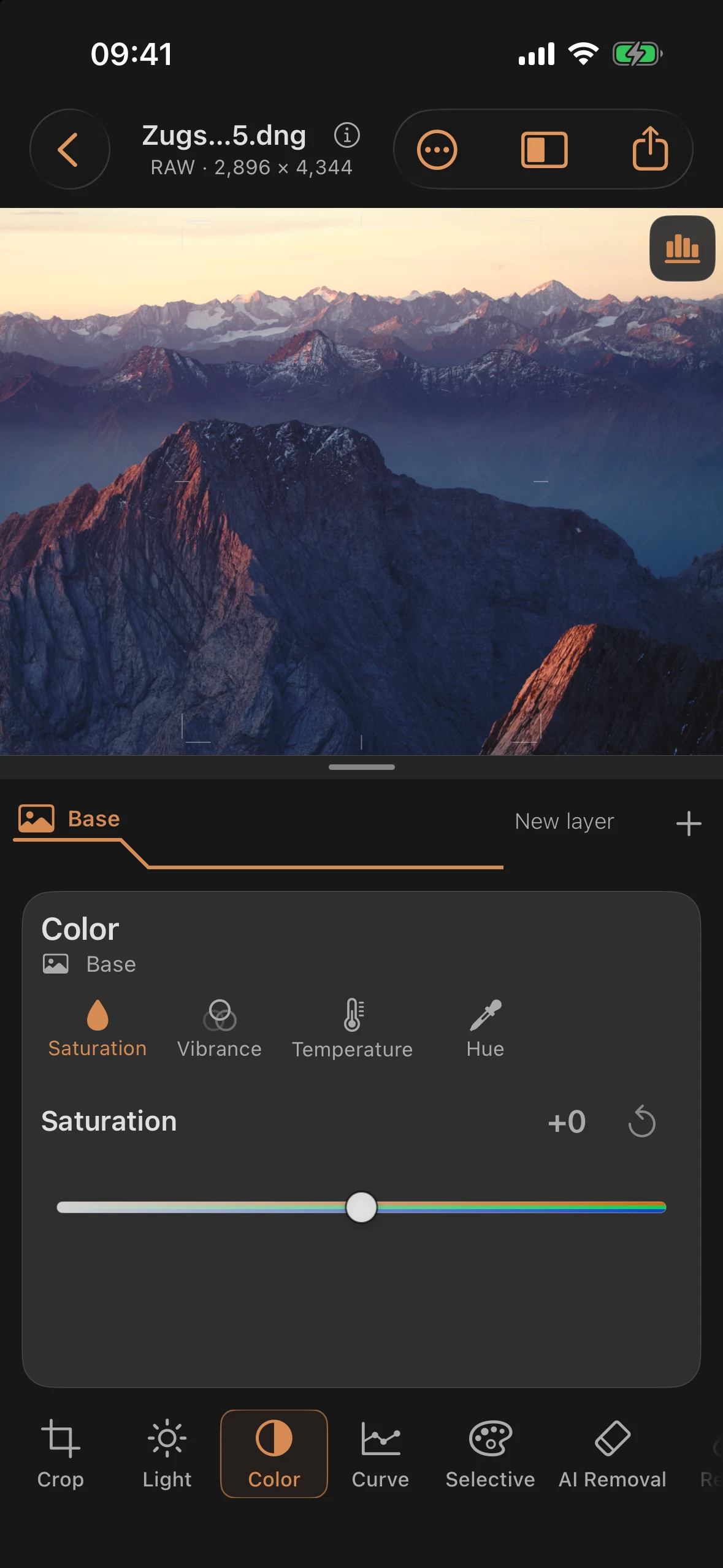
Color: White Balance, Vibrance, and Saturation
The Color tool opens with Saturation selected, followed by Vibrance, Temperature, and Hue. This order is the same globally and inside masks. Saturation and Vibrance adjust color intensity; Temperature and Hue adjust white balance.
Controls
| Control | Range (RAW) | Range (JPEG/HEIF) | Default | Effect |
|---|---|---|---|---|
| Saturation | −100 to +100 | −75 to +75 | 0 | Saturation evenly across all colors |
| Vibrance | −100 to +100 | −75 to +75 | 0 | Saturation that favors already-muted colors |
| Temperature | −100 to +100 | −75 to +75 | 0 | Warmer (yellow/orange) to the left, cooler (blue) to the right |
| Hue (White Balance) | −100 to +100 | −75 to +75 | 0 | Magenta to the left, green to the right |
Colored slider tracks
Temperature runs from warm through neutral to cool; Hue from magenta through neutral to green. Saturation and Vibrance show increasing color intensity. The tracks indicate direction, not the exact resulting color of each pixel. Labels and numeric values remain available alongside these visual cues.
Naming collision: “Hue”
The fourth control is labeled “Hue” in the app, and it’s part of white balance — it steers the green-magenta axis, the same one you’d find on a camera body. The Selective tool (next chapter) has its own control also called “Hue,” but there it means a hue shift within a single color band. These are two different controls that happen to share the same name in different tools — where it matters, this manual adds “(White Balance)” or “(Selective)” to tell them apart.
RAW and JPEG/HEIF
As with the Light tool, the app offers a narrower working window for JPEG and HEIF, because the already-developed material has less headroom for extreme color shifts. An outlier value already present when you open an older document stays reachable, rather than jumping when the window changes.
Practical tips
- Set Temperature and Hue roughly first, before working on Vibrance or Saturation — an off white balance otherwise shifts the effect of the saturation controls too.
- Vibrance acts more gently on colors that are already strong — often the better choice for careful skin-tone corrections than Saturation.
- The Color tool is also available inside every mask — for example, you can cool down just the sky without touching the rest of the image.